Microsoft Azure provides businesses with scalable cloud services to support their growing needs. However, this flexibility comes at a cost, and it’s important to closely manage cloud spending over time.
Azure recognizes the importance of cloud cost optimization and offers discount instruments like Azure Reservations to help customers save on their monthly cloud bills.
In this article, we’ll explain the basics of Azure Reserved Instances and how you can use them to create more pricing predictability and cost savings.
What Are Azure Reserved Instances?
Azure Reserved VM Instances are a purchasing option that allows businesses to save you up to 72% compared to standard pay-as-you-go rates in exchange for committed usage of virtual machine (VM) instances over a one- or three-year term. By committing to a specific instance type, size, and region, organizations can benefit from predictable pricing and significant savings.
While the standard Microsoft Azure pricing model allows flexibility by charging only for the resources you use, Azure RIs offer a way to trade some of that flexibility for lower, predictable costs. You commit to a specific VM instance configuration within a certain region in exchange for a significantly lower fixed hourly rate.
Once a reservation is purchased, you can choose between paying upfront or spreading the cost over monthly installments, without affecting the discount rate. Microsoft Azure’s consistent discount structure ensures that you receive the same savings whether you pay in full or over time, unlike AWS, where upfront payments can influence the discount level.
While “Reservations” and “Reserved Instances” are used interchangeably, it is important to note that Azure Reserved VM Instances are specifically designed for Windows and Linux virtual machines (VMs), whereas the broader category of “Reservations” are available for a wide range of services.
How Do Azure Reserved Instances Work?
When purchasing a Reserved Instance, you’ll need to select the various attributes of the reserved instance. Pricing and availability will depend on factors like:
- Resource type
- Instance size
- Region location
- Reservation scope
Discounts automatically apply when your resource usage matches your selected attributes. However, Microsoft Azure classifies Reservation discounts as “use-it-or-lose-it.”
Your committed fixed hourly rates will stay in place regardless of whether or not they’re used. Azure does not issue refunds or credits for unused hours, and they will not carry over to the next billing cycle; the leftover reservations will be considered cloud waste.
Reservation Scoping Options
Azure Reservation scoping lets you decide how your discounts apply to your reserved instances. When purchasing a new Reservation, you’ll have three scoping options to choose from:
- Single Resource Group: Discounts apply only to matching resources in the same resource group.
- Single Subscription Scope: Discounts apply across all Azure virtual machines that belong to the same service subscription.
- Shared Scope: Discounts apply to any matching resources spread across the same billing scope or multiple subscriptions attached to the same enrollment or billing account.
You can change the Reservation scope anytime, even after they’re purchased. However, discount percentages will vary depending on which option you choose.
Exchanging and Canceling Reservations
Azure Reservations are interchangeable, and you can exchange them at any time for a new Reservation of equal or lesser value. There are no additional fees when making any eligible exchanges. During an exchange, you can change all Reservation attributes, including the term length.
Microsoft Azure also allows you to cancel your Reservations before the term expiration date. You’ll then receive a prorated refund for any unused portion of your Reservation. However, there are certain limitations to this provision.
When canceling your Reservation commitments, the total value amount cannot exceed $50,000 within a 12-month period. This applies to any cancellations made within the same billing scope.
Who Can View and Manage Microsoft Azure Reservations?
Azure determines where and how to assign Reservation permissions through a role-based access control (RBAC) system.
- By default, the person who buys a reservation and the account administrator of the billing subscription used to buy the reservation are added to the reservation order. Reservation owners can perform all actions associated with Reservations, including modifications, exchanges, and cancellations.
- Enterprise Agreement and Microsoft Customer Agreement billing users also receive management permissions.
You can manage all users and permission assignments directly through the Azure Portal. Alternatively, authorized users can use PowerShell to add or modify permissions automatically using various Cmdlets scripts.
Benefits of Azure Reserved Instances
Azure Reserved Instances are a great way to get more value from your cloud investments, as they deliver:
Cost savings
Reservations offer more business value for your virtual machines, databases, and cloud storage solutions, saving you up to 72% while maintaining the same performance level. So they’re an excellent solution for applications with consistent, and predictable resource demands.
For even more savings, you can combine Azure Reservations with the Azure Hybrid Benefit. Hybrid Benefit lets you bring your Windows or SQL Server licenses into the Microsoft Azure platform without additional software costs.
Price predictability
Although pay-as-you-go pricing models are highly flexible, they’re also hard to predict. Resource costs can also shift considerably from one month to the next as resource demands change across all cloud users.
Azure Reservations allow you to lock in your hourly usage costs for one or three years. With more predictable pricing each month, you can forecast more accurately and minimize budget strain.
Flexibility
An added benefit of Azure Reservations is the ability to exchange existing Reservations for new Reservations of equal or greater value. Reservations purchased with instance size flexibility also allow you to apply discounts to any VM instances assigned to the same group. This lets you shift workloads as needed while still maximizing your total savings.
How To Purchase Azure Reservations Step-by-Step
Purchasing a new Azure Reservation only requires a few basic steps. Below, we’ll walk you through the process.
- Sign in to the Azure Portal: Start by logging into the Azure Portal and navigate to the “Reservations” section. You can find this area using the global search function in the top bar or by navigating to the “Cost Management + Billing” category.
- Select resource type and scope: Choose the resource type you want to reserve — virtual machine, SQL database, Azure Cosmos DB, etc. — and then select the scope. You can choose between Single Resource Group, Single Subscription, or Shared Subscriptions.
- Configure the Reservation: Choose the Azure region where you want to create your Reservation. Reservations are region-specific and may impact the discount percentages you’ll receive. Then choose a VM size and service tier, your Reservation term (one or three years), and the number of instances you need. Finally, select your preferred payment terms: all upfront or monthly.
- Review and confirm: Before confirming your Reservation purchase, review all details and make any necessary adjustments.
- Manage Reservations: Once your purchase is complete, you can immediately benefit from your discounted rates. Navigate to the Azure Portal, confirm your Reservation user permissions, and monitor your Reservations as needed.
How To Build a Reserved Instance Management Strategy
Applying Azure Reserved Instances (RIs) across your cloud infrastructure is a great way to increase your cloud cost savings. However, you need to put the right management strategy in place to maximize their value.
Below are some key steps to follow when purchasing Azure Reservations:
1. Understand the fundamentals
While Reservations offer significant discounts compared to pay-as-you-go pricing models, they require careful consideration. There is always a risk of overprovisioning if your resource needs are dynamic. Start by learning the basics of Azure Reservations — how they work, the benefits, and the potential risks, enabling you to make informed decisions on what to buy, when, and how to use them.
It’s also vital that you understand your workload because the right RIs largely depend on your organization’s resource demands — so make sure you get your fundamentals right before you start investing.
2. Develop a consistent and repeatable process
Resource requirements will naturally change over time. To remain agile, develop a standardized process for purchasing and managing your Reservations. Creating a disciplined cloud management budget and forecasting your workloads will help you develop more consistent and repeatable RI purchases. The more data you collect on cloud usage patterns, the more accurate the projections will be and the lower the cloud waste.
Regularly review usage patterns and make any necessary adjustments, such as purchasing additional RIs, canceling, or exchanging them to match changing workload needs.
3. Purchase in small quantities and more frequently
While it might be tempting to reduce RI management workloads by making larger, infrequent commitments, you won’t achieve the same level of efficiency and cost savings.
Making regular purchases means you’re reevaluating your usage and determining which resources can benefit the most from the RIs. It also reduces the risk of locking yourself into larger commitments you no longer need, and you can better fine-tune reservations to maximize discounts.
4. Continuously measure and optimize Reservation usage
Unlike other fixed models, Reservations require regular monitoring. It’s important to avoid overprovisioning RIs since you lose any unused discount provisions after each month.
While it’s common to see certain months with lower consumption rates, repeatedly seeing wasted spend may mean it’s time for a change. Many cloud platforms, including Microsoft Azure, have cost-monitoring tools to help you optimize Reservation usage. Utilize these tools to identify potential usage anomalies while looking for new cost-saving opportunities.
Azure Reservations vs. Azure Savings Plans
Both Azure Reservations and Savings Plans provide significant discounts on cloud costs. However, the one that’s ideal for you will depend on your usage needs.
Azure Reservations offer higher discounts (up to 72%) but very limited flexibility because these reservations have defined configurations like resource type, size, and region. However, because of their limited flexibility, they’re designed for more predictable workloads.
Azure Savings Plans offer slightly lower discounts (up to 65%) when compared to Reservations. But, they offer the utmost flexibility in return. Azure Savings Plans allow you to commit to a specific spend amount per hour ($/hour), which is applied to any eligible compute resources. This means you can benefit from discounted rates across various VM sizes, types, and regions.
Savings Plans are ideal when working with more dynamic workloads with less predictability. Because you’re committing to a fixed spend amount instead of defined resources, you can apply discounts to a broader range of Azure services.
Ultimately, when deciding between Azure Savings Plans and Reserved Instances, it all comes down to what’s most important to your business: increased flexibility or the highest savings potential.
Optimize Your Azure Reserved Instances With PropserOps
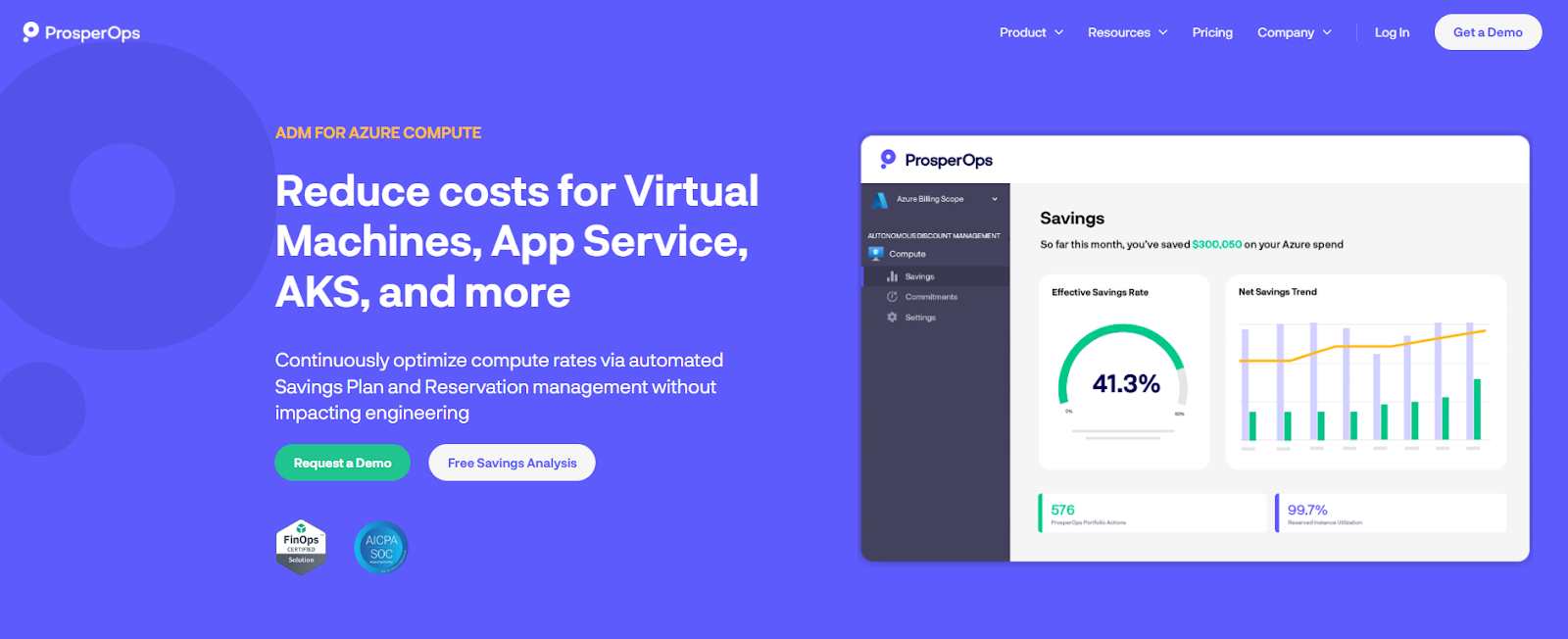
ProsperOps delivers cloud savings-as-a-service and leverages its Autonomous Discount Management platform to optimize Microsoft Azure’s native discounts to reduce your cloud spend and place you in the 98th percentile of FinOps teams.
Using machine learning algorithms and advanced data analytics, ProsperOps can continuously analyze your company’s Azure usage patterns to identify inefficiencies and autonomously manage a portfolio of commitments. With our Adaptive Laddering approach, we safely increase coverage while minimizing lock-in risk from commitments.
By blending your discount instruments, such as Azure Savings Plans, and Azure Reserved VM Instances, we help you maximize Effective Savings Rate while lowering Commitment Lock-in Risk. We remove the effort, latency, and lock-in risk associated with manually managing rigid, long-term commitments and fully automate cloud rate optimization for you.
With ProsperOps automation, there is no impact on engineering. Our platform setup is quick, and our systems work behind the scenes to optimize your cloud costs. This allows your teams to concentrate on innovation and growth while we automate cloud cost optimization for you.
To see ProsperOps in action, book a demo today.